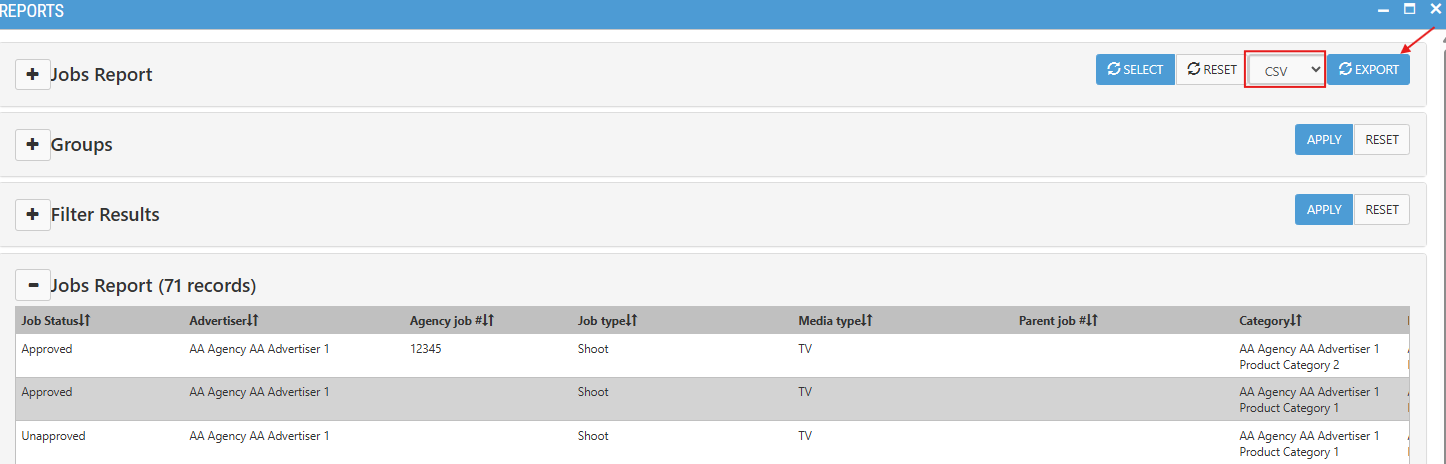
To generate a report, please follow the steps below:
- Log into your Talentpay account and click the 'Reports' icon on the dashboard.

- Click on the report type, you would like to generate. There are three options:
- Expiry: Use this report to monitor job rollover dates.
- Jobs: This report gives you a comprehensive view of all your job records.
- Metadata: This report highlights any custom fields configured for your account
- Each report screen is designed to allow for easy customisation of both layout and data. You can:
- Add or remove fields
- Reorder field layouts
- Filter data by multiple fields
- Export reports in CSV or Excel formats
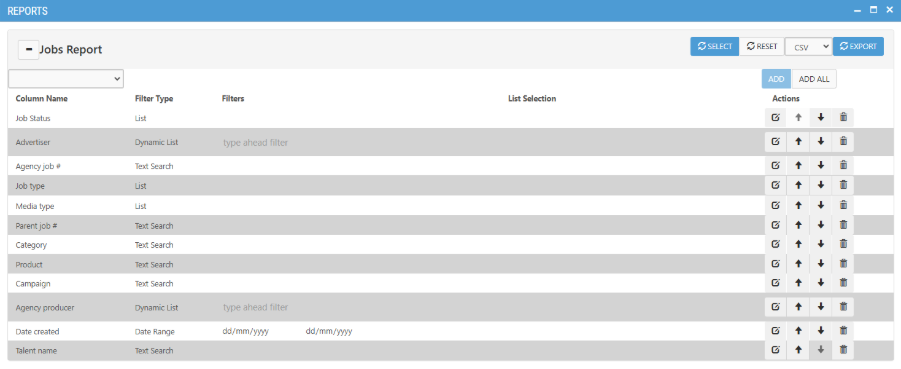
- Use the section below to select additional fields you want to include in the report.
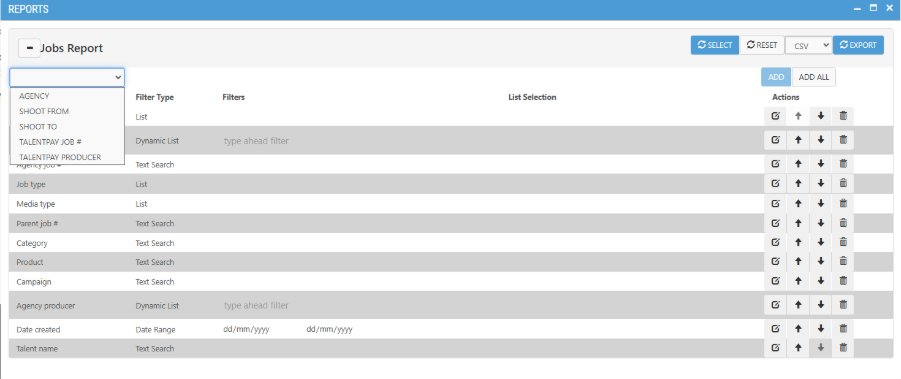
- The ‘Action Buttons’, in the ‘Actions’ column, allows you to apply filters on the fields, change the position of fields and remove fields from the report.

- To refine your search, apply the filters to display only the relevant data. Filters are designed to match the field's data type. Once a selection is made click the icon to lock it in.
- If the field is a dropdown, the filter will also be a dropdown.
- If the field is a date, a calendar picker will be provided for easy selection.
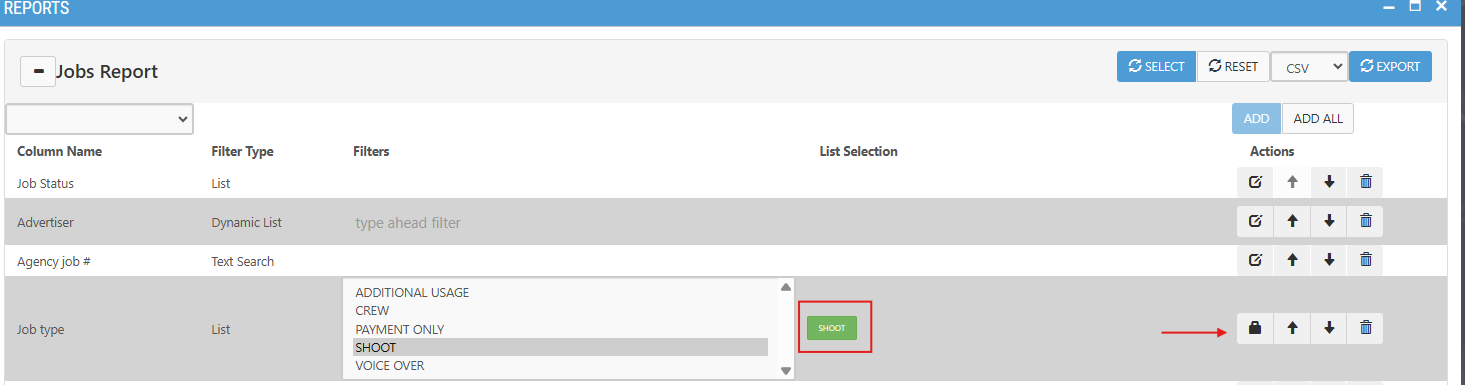
3. Once you've set all your filters and customised the layout, click 'Select' to generate the report on-screen.
4. After the report has been generated, you can export it as either a CSV or Excel file.